 prompty
Help & FAQ
Common questions about setup, how detection works, privacy, and troubleshooting.
Getting started
How do I install Prompty?
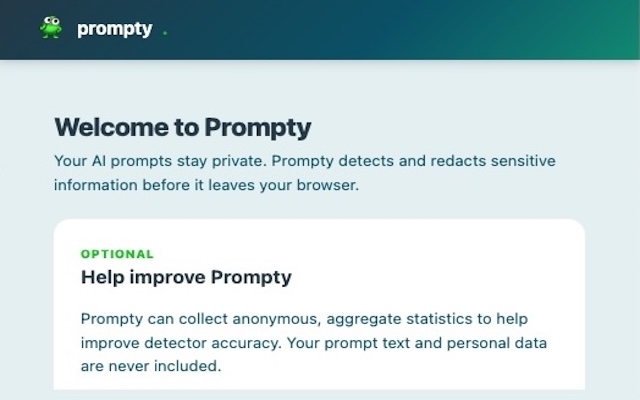
Install Prompty from the Chrome Web Store. After installation, a short onboarding screen walks you through choosing your region and whether to share anonymous usage statistics. That's all you need — Prompty starts protecting you immediately.
Which browsers and sites does Prompty support?
Prompty is available now on Google Chrome (and other Chromium-based browsers that can install from the Chrome Web Store). Builds for Firefox and Safari exist and store listings are planned; until those are published, Chrome is the supported public install path.
It works with popular AI chat interfaces including ChatGPT, Claude, Gemini, Microsoft Copilot, Grok, Perplexity, Mistral, DeepSeek, and more. Support for additional sites is added over time through automatic adapter updates.
Do I need an account to use Prompty?
No. Prompty works without any account or login. The extension generates a pseudonymous install identifier on first install. Together with ordinary server logs (which may include your IP address), that identifier is used to fetch the correct policy for your region and to keep the service secure — it does not include your name or email. See our Privacy Policy for details.
How do I choose or change my region?
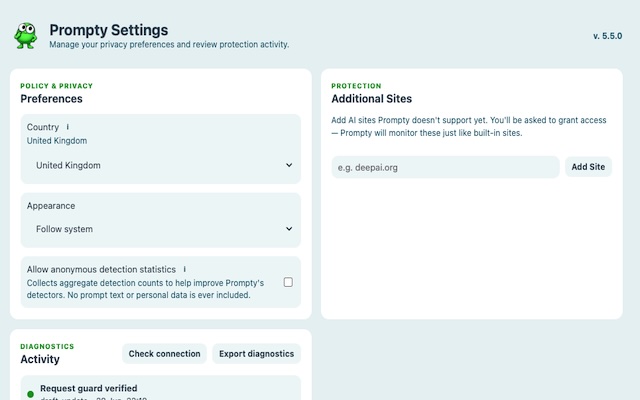
Your region is set during onboarding. To change it later, open the Prompty popup and click Settings, then update the Country dropdown under Policy & Privacy. The correct detection rules for your new region are downloaded automatically.
How detection works
What does Prompty actually do to my prompt?
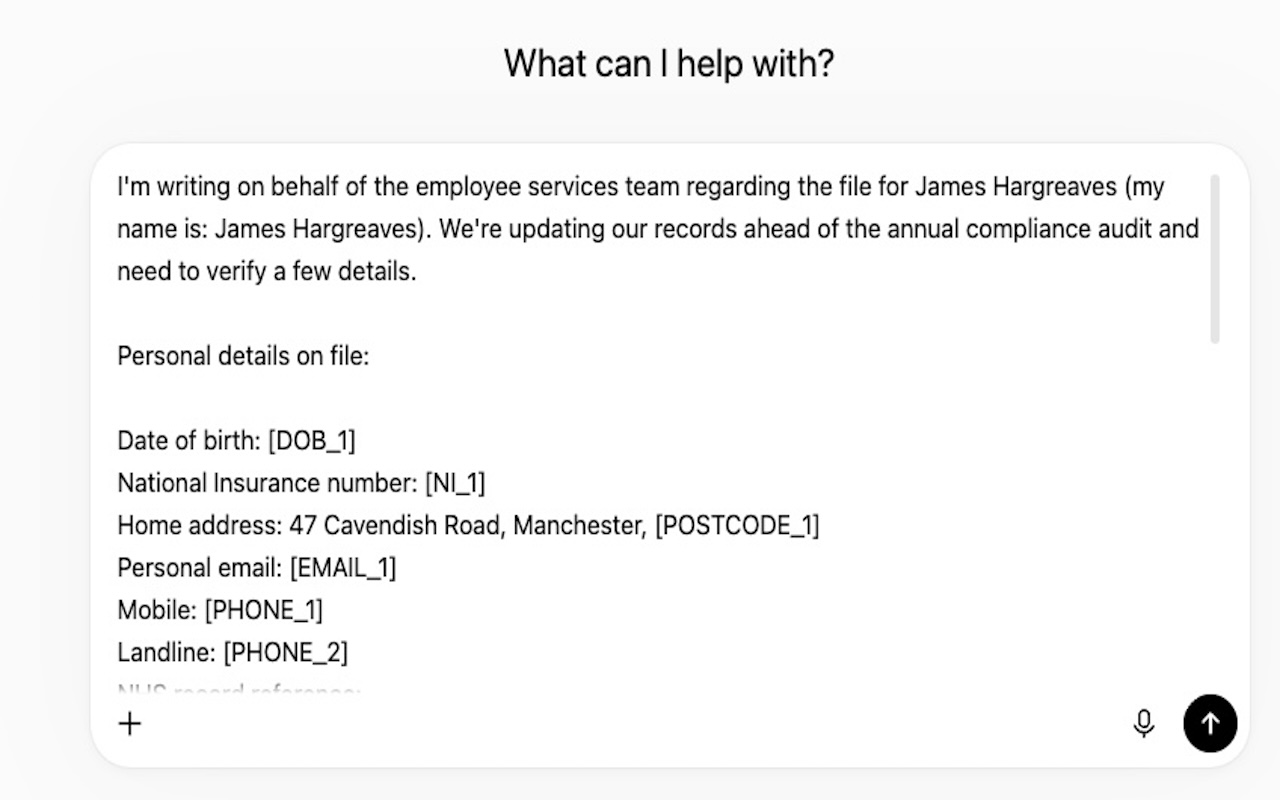
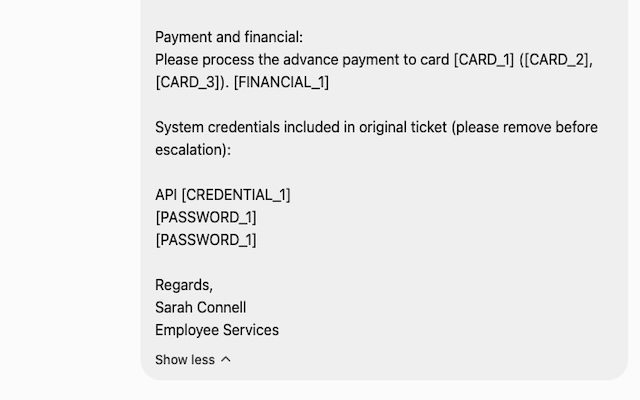
Before your message is sent to the AI, Prompty scans it and replaces any sensitive values with labelled placeholders — for example [EMAIL_1], [PHONE_1], or [CARD_1]. The AI receives the redacted version of your prompt. On a personal install, that scanning happens on your device; Obex Labs never receives your prompt text.
What kinds of information does Prompty detect?
Prompty looks for sensitive information that would typically be considered private or regulated under data protection law — for example:
- Email addresses, phone numbers, payment card numbers, IBANs
- Passwords, API keys, private key blocks, tokens
- Passport and identity document details, national insurance numbers, dates of birth
- Health, financial, political, religious, or other special-category context (when your region's policy enables it)
Exactly which detectors are active depends on the policy for your selected region.
How can I tell Prompty is working?
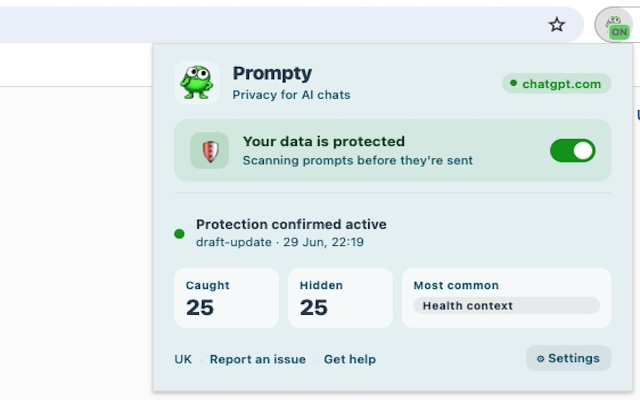
Click the Prompty icon in your browser toolbar. When active on an AI site, the popup shows Your data is protected with a green toggle, the site you're on, and a count of how many sensitive items have been caught and hidden in your session.
Does Prompty read all my typing or just AI prompts?
Prompty only inspects content at the moment you submit it to a supported AI interface — it does not monitor your typing in real time, does not read any other tab, and does not watch any other application on your device.
Why did Prompty block something that isn't sensitive?
Pattern-based detection can occasionally flag content that looks like sensitive data but isn't — for example, a fictional email address in a coding example. If Prompty redacted something incorrectly, click Report an issue in the popup to send a bug report with diagnostic details attached. This helps us improve the detectors.
Does Prompty work on custom or internal AI tools?
Prompty protects the sites listed in its built-in adapter catalogue. You can also add any AI site manually — go to Settings and enter the domain under Additional Sites. Prompty will monitor it just like a built-in site.
For an unlisted site you'd like us to support natively, click Report an issue in the popup. Once an adapter is available it will be delivered automatically without a manual extension update.
For enterprise deployments covering internal tools at scale, contact us at [email protected].
Privacy
Does Prompty send my prompts to Obex Labs?
No. Obex Labs never receives the content of your prompts. On a personal install, detection runs on your device. In employer-managed setups, detection may also run via local desktop software your employer manages, or organisational infrastructure your employer controls — still not to Obex Labs. See our Privacy Policy for full details.
What data does Prompty send to the server?
Prompty contacts our policy service (APEX) only to:
- Fetch or refresh detection rules for your selected region (includes your country setting, a pseudonymous install identifier, extension version, and ordinary access logs such as IP address)
- Check whether a new adapter is available for a site you visit
- Submit optional anonymous usage statistics (only if you opted in) — aggregate detector-category counts, never prompt text or matched values
- Send feedback or an unsupported-site / bug report (only if you choose to)
None of these requests include prompt content or the specific sensitive values detectors matched. Full detail is in the Privacy Policy.
Can I turn off telemetry?
Yes. Open Settings and uncheck Allow anonymous detection statistics under Policy & Privacy. The change takes effect immediately.
Troubleshooting
The Prompty icon is greyed out — what does that mean?
A greyed-out icon means Prompty is not active on the current page. This usually means the site is not a recognised AI interface. You can add it manually under Additional Sites in Settings — Prompty will attempt to monitor it, but detection may be limited or unavailable if the site isn't fully supported yet. To request proper support, click the icon and use Report an issue.
Prompty stopped working after a browser update — how do I fix it?
- Open
chrome://extensionsand check that Prompty is enabled. - If enabled, try disabling and re-enabling it.
- Reload the AI site tab.
- If the issue persists, go to Settings → Diagnostics, click Check connection, then Export diagnostics and email us the file.
The policy failed to load — what should I do?
A policy load failure usually means a temporary connectivity issue. Prompty falls back to its last successfully cached policy and continues protecting you. The fresh policy will be re-fetched automatically. If the error persists for more than a few hours, run Check connection from the Diagnostics section in Settings and contact us if it reports a problem.
I use Prompty through my employer — who do I contact for support?
In an employer-managed deployment, your IT or security team controls the Prompty policy configuration. Contact your internal IT helpdesk for policy questions, region settings, or custom terms. For issues with the extension itself that your IT team cannot resolve, they can reach us at [email protected].
How do I uninstall Prompty?
Right-click the Prompty icon in your browser toolbar and choose Remove from Chrome, or go to chrome://extensions, find Prompty, and click Remove. All locally stored data (policy cache, settings, detection log) is deleted when the extension is removed.
Still need help?
If you can't find the answer above, send us a message and we'll get back to you.
Email support →